Download Seestar FITS Remotely
In this article I will outline how to retrieve the FITS files from a Seestar using the native Seestar app. This article assumes you’ve already configured your telescope to save FITS files.
In order for this to work, you must be logged into the Seestar with your ZWO account. I use a BlueStacks on a Windows PC. BlueStacks emulates Android and allows me to run the telescope from my PC instead of a mobile device. The instructions should remain the same if you’re using an iOS device.
Step By Step
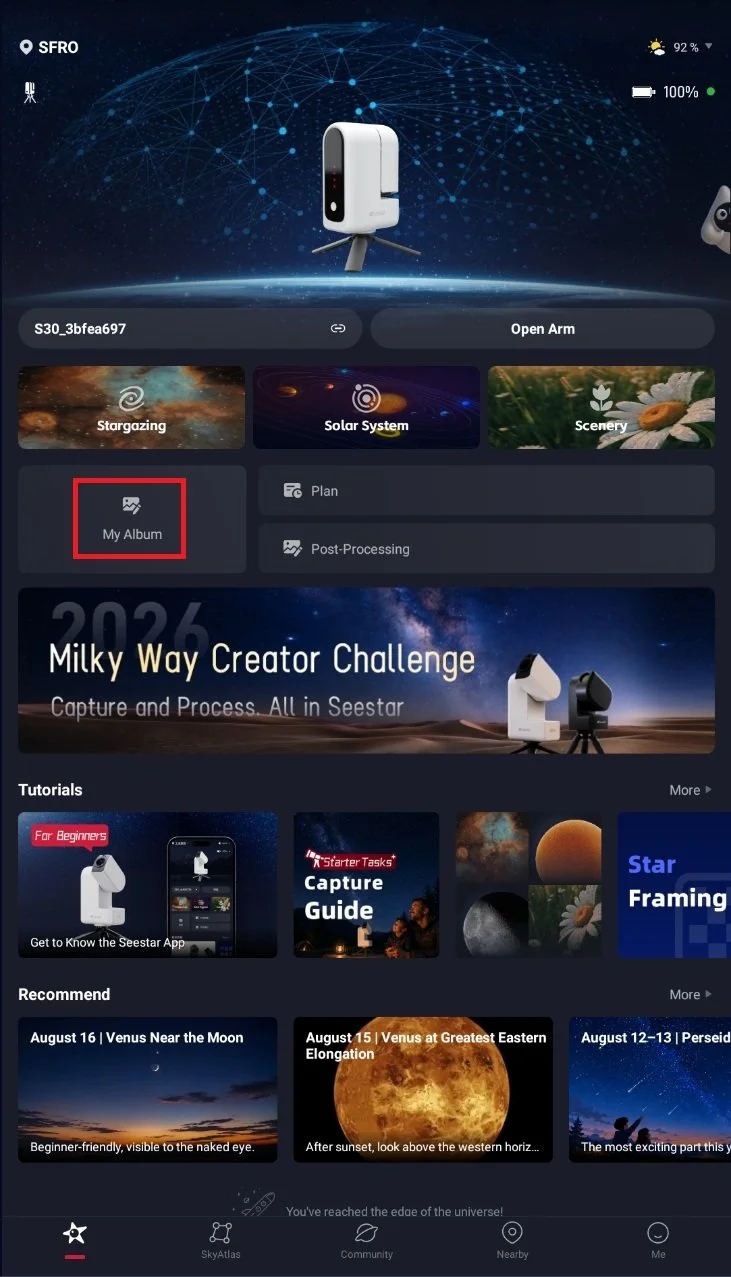
Click “My Album” on the main screen of the Seestar app.
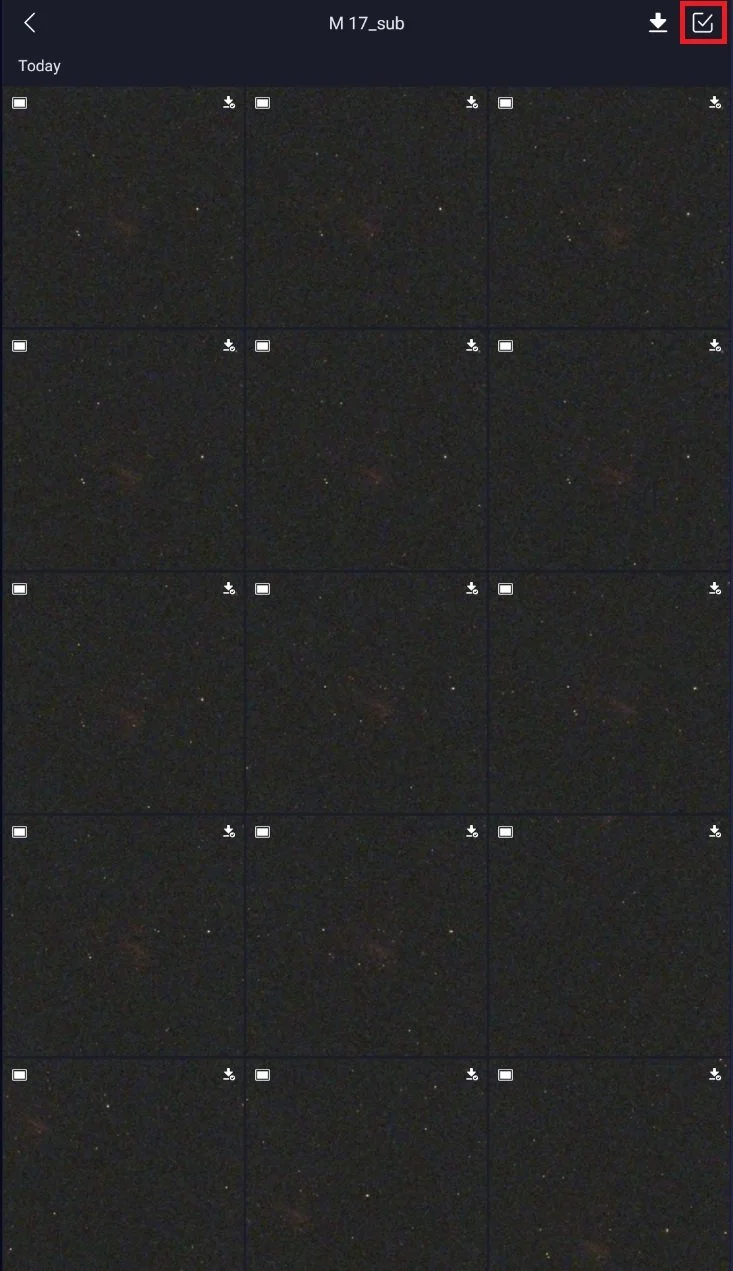
At the top left you’ll see Phone and Seestar. Clicking Seestar will open up all the target folders for the data currently stored on the telescope. There will be 2 folders for each target. the first folder contains the stacked image that generates automatically during the imaging session. The second folder with the suffix sub contains the individual FITS and JPG files.
Select the _subs folder.
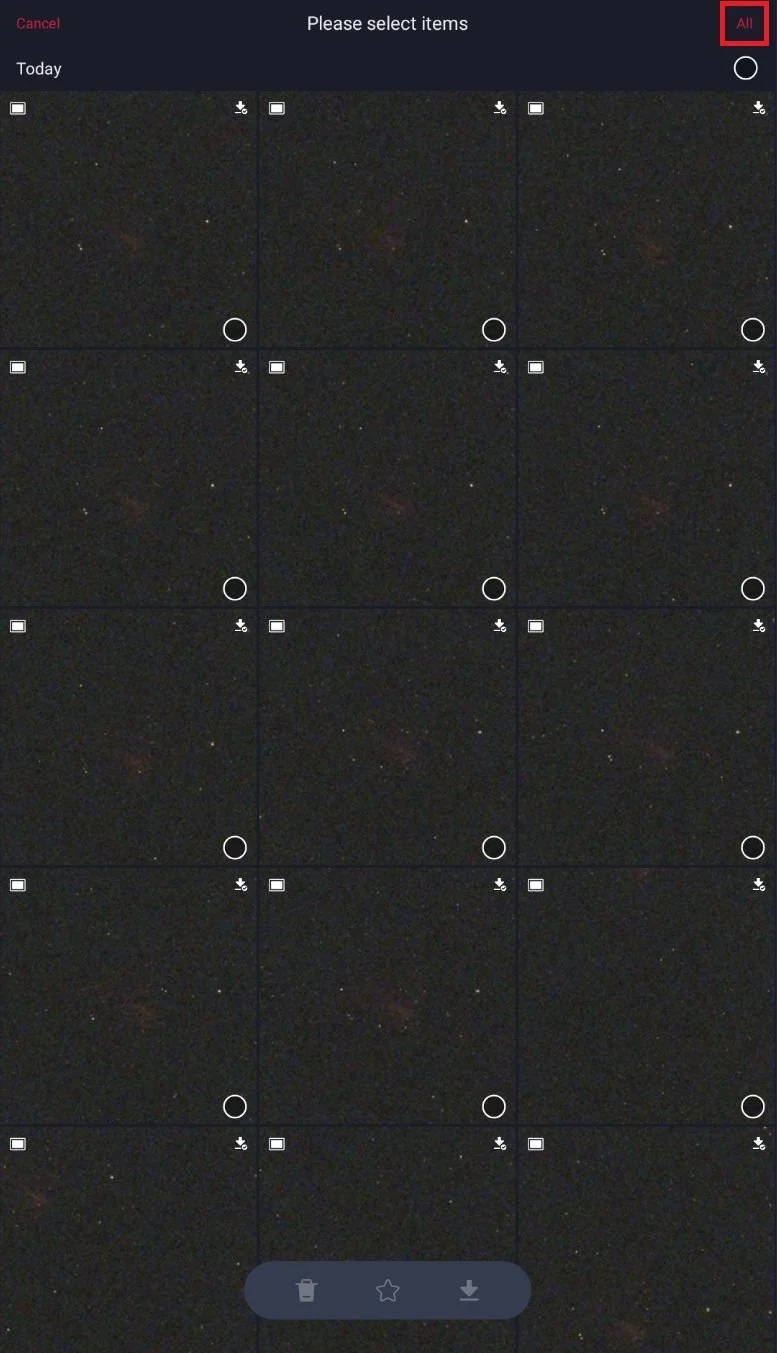
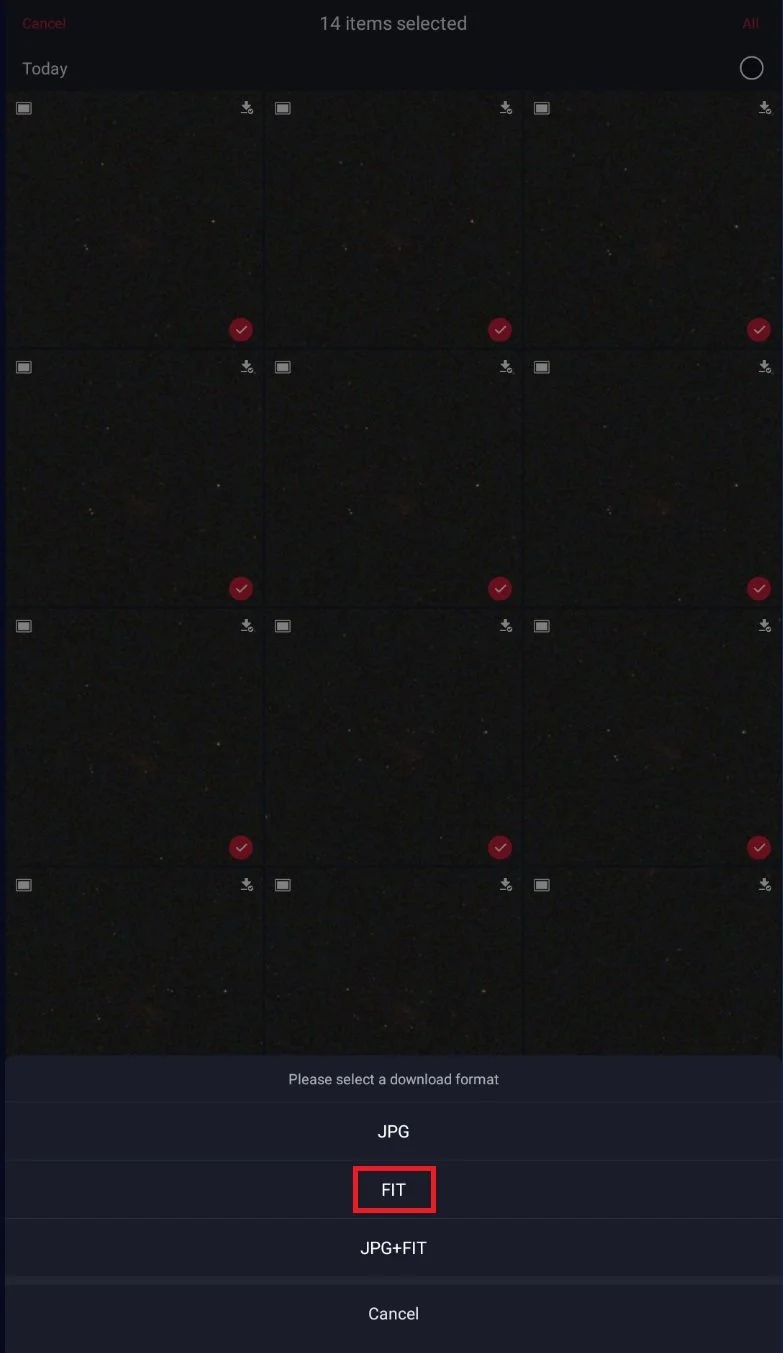
In the top right of the screen click the checkmark, then click All.
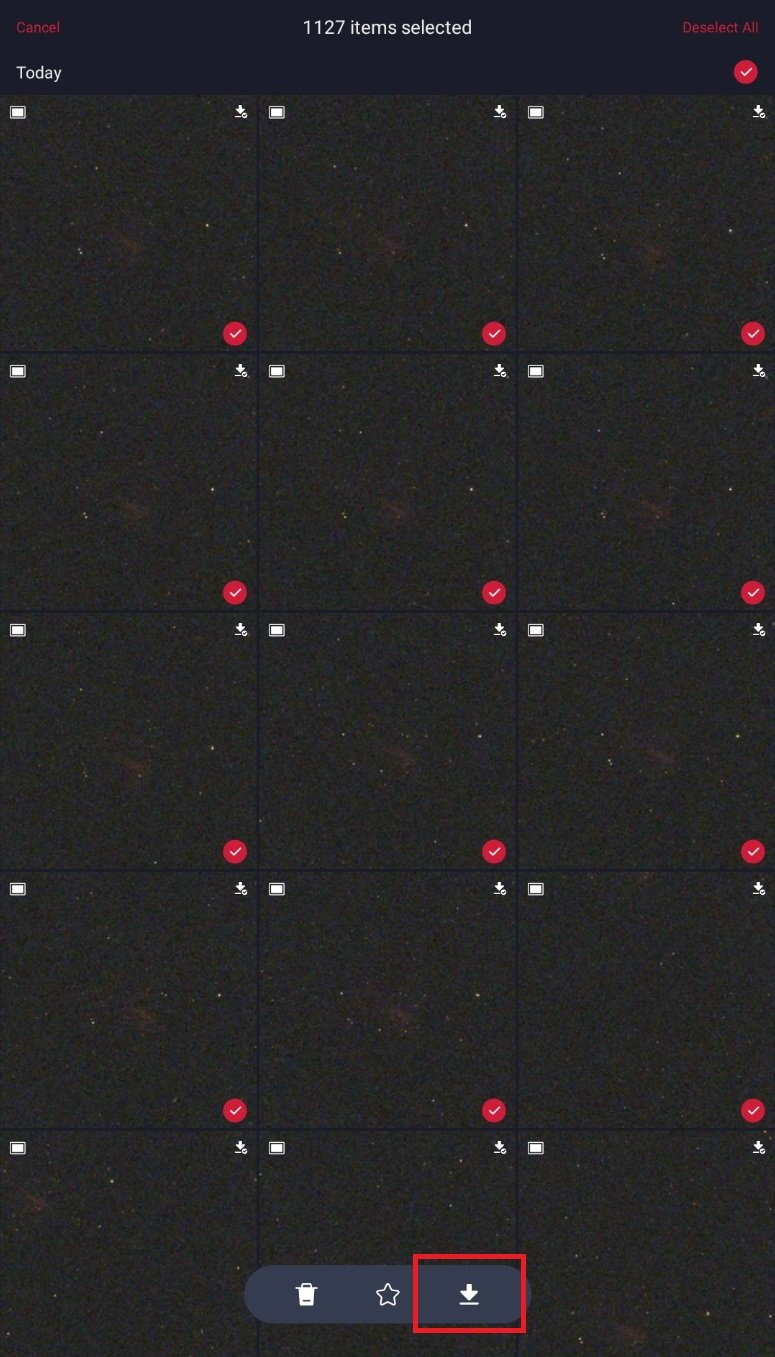
Click the download icon at the bottom of the screen.
Select FIT
A pop-up message will appear saying the files have been added to the downloads list.
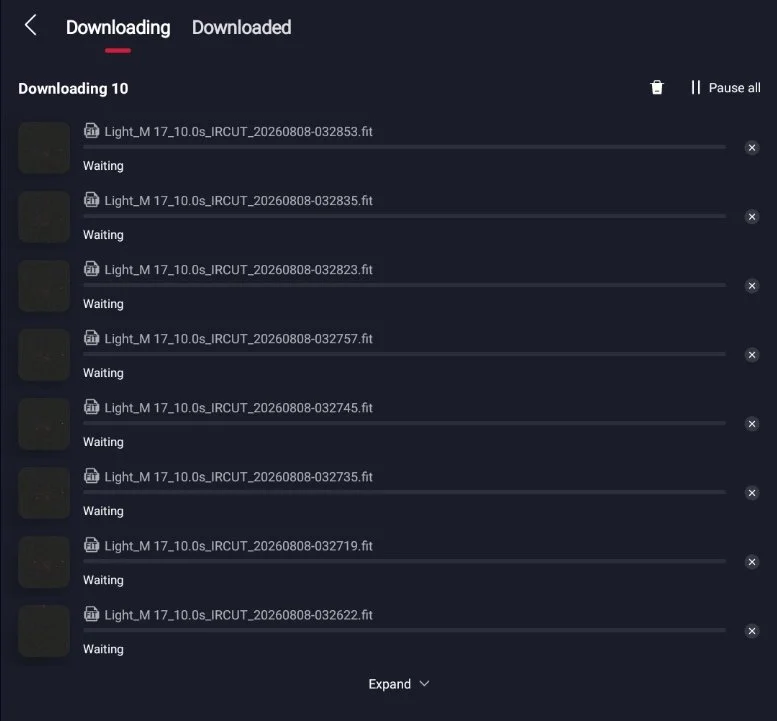
Use the back arrow to exit the _sub folder, then click Downloading. There you can see the progress of your downloads. When done the subs will be downloaded locally to your Seestar all and the list will be empty.
Make it stand out
Whatever it is, the way you tell your story online can make all the difference.
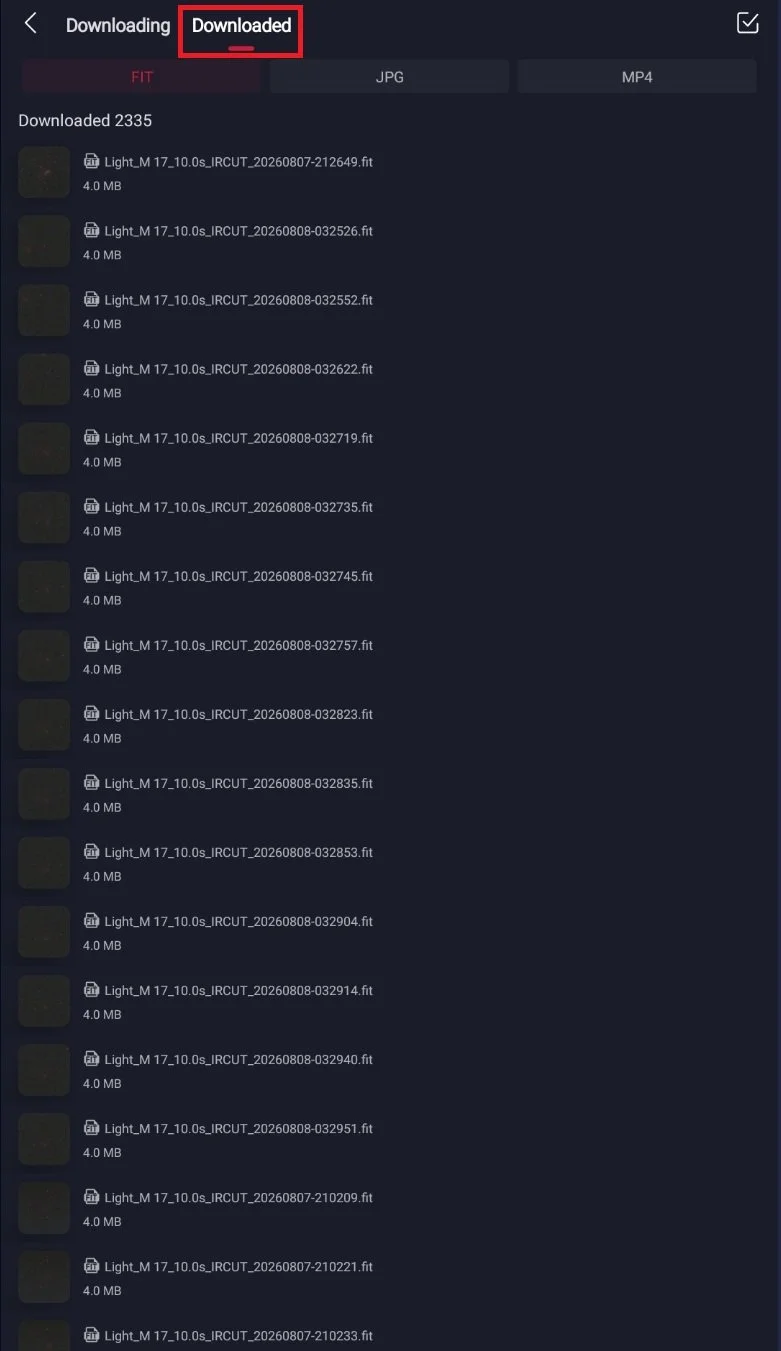
Click Downloaded to show the subs downloaded locally to the Seestar app.
Make it stand out
Whatever it is, the way you tell your story online can make all the difference.
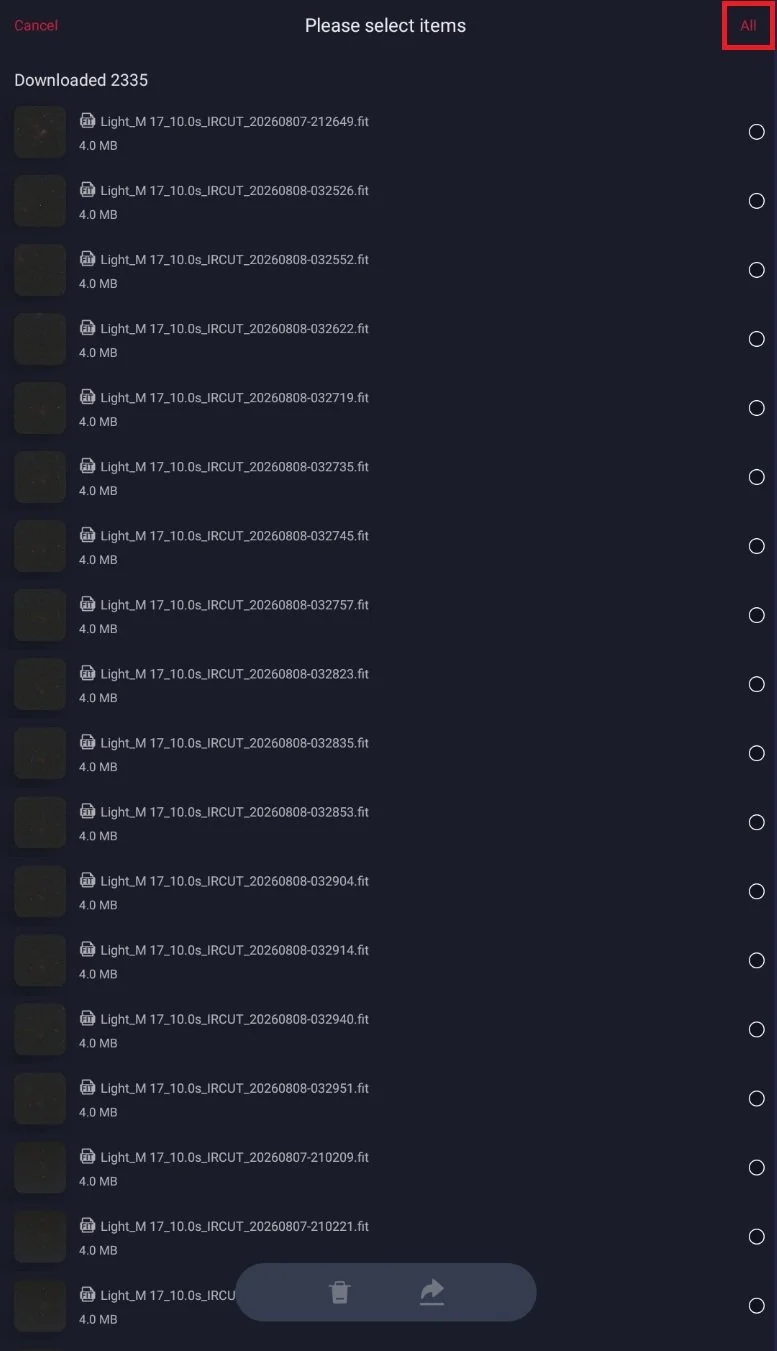
Click the checkmark button at the top right of the screen. Next, click All to select all the subs. Finally, click the share button at the bottom of the screen. The app will compress the subs into a .zip file.
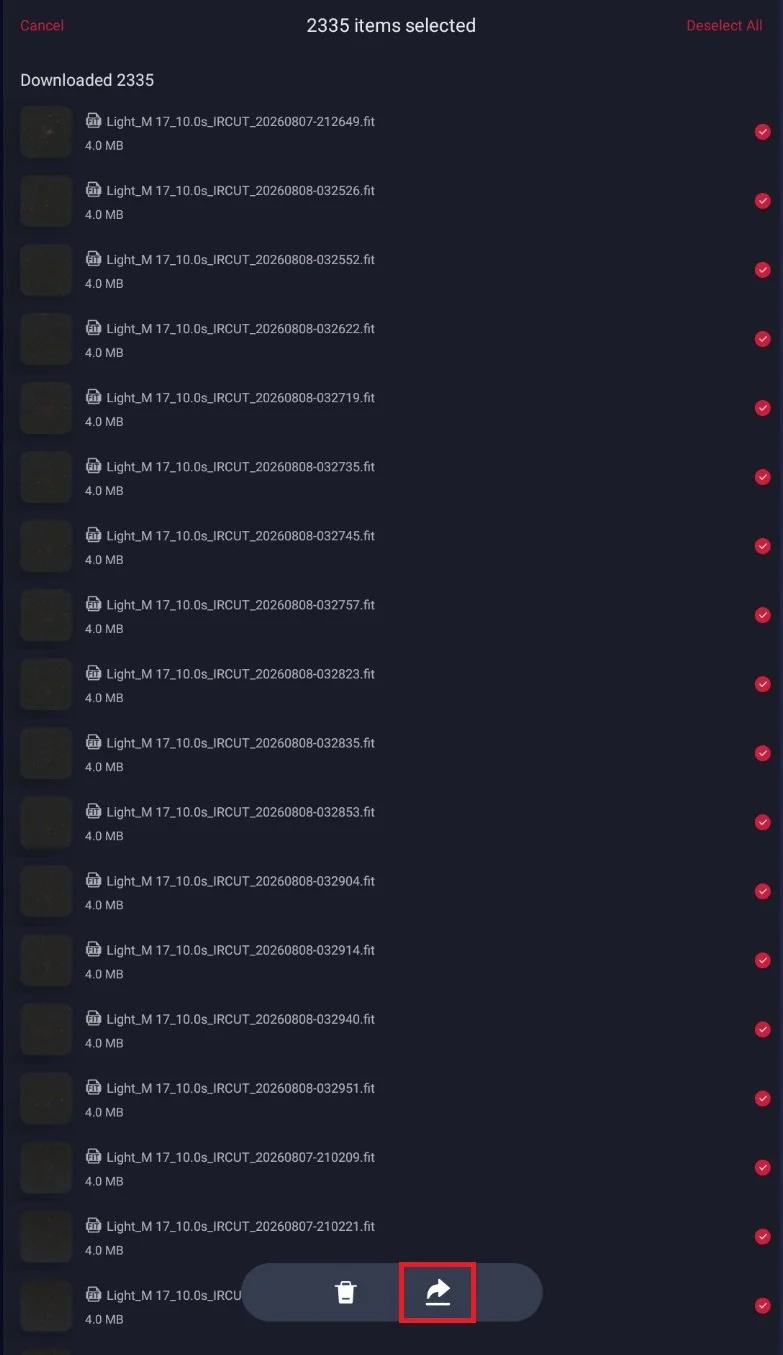
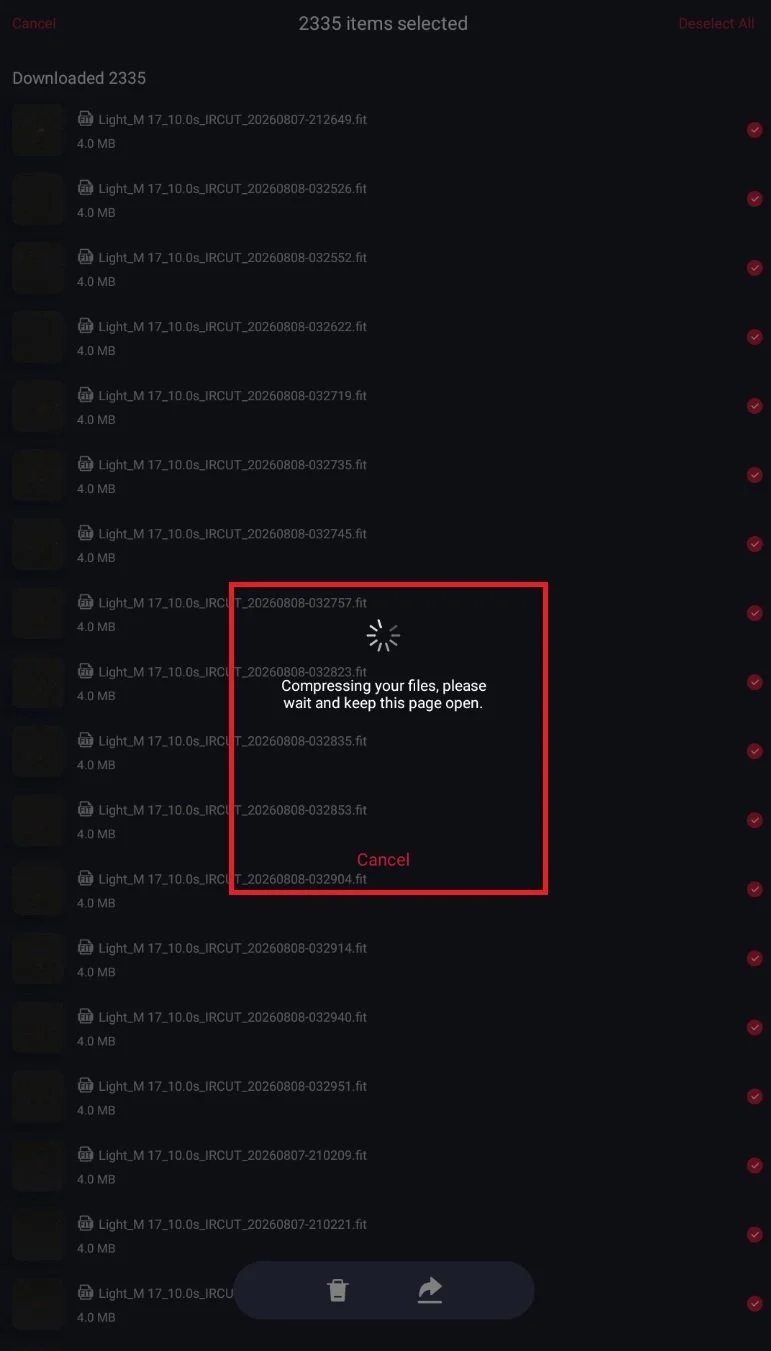
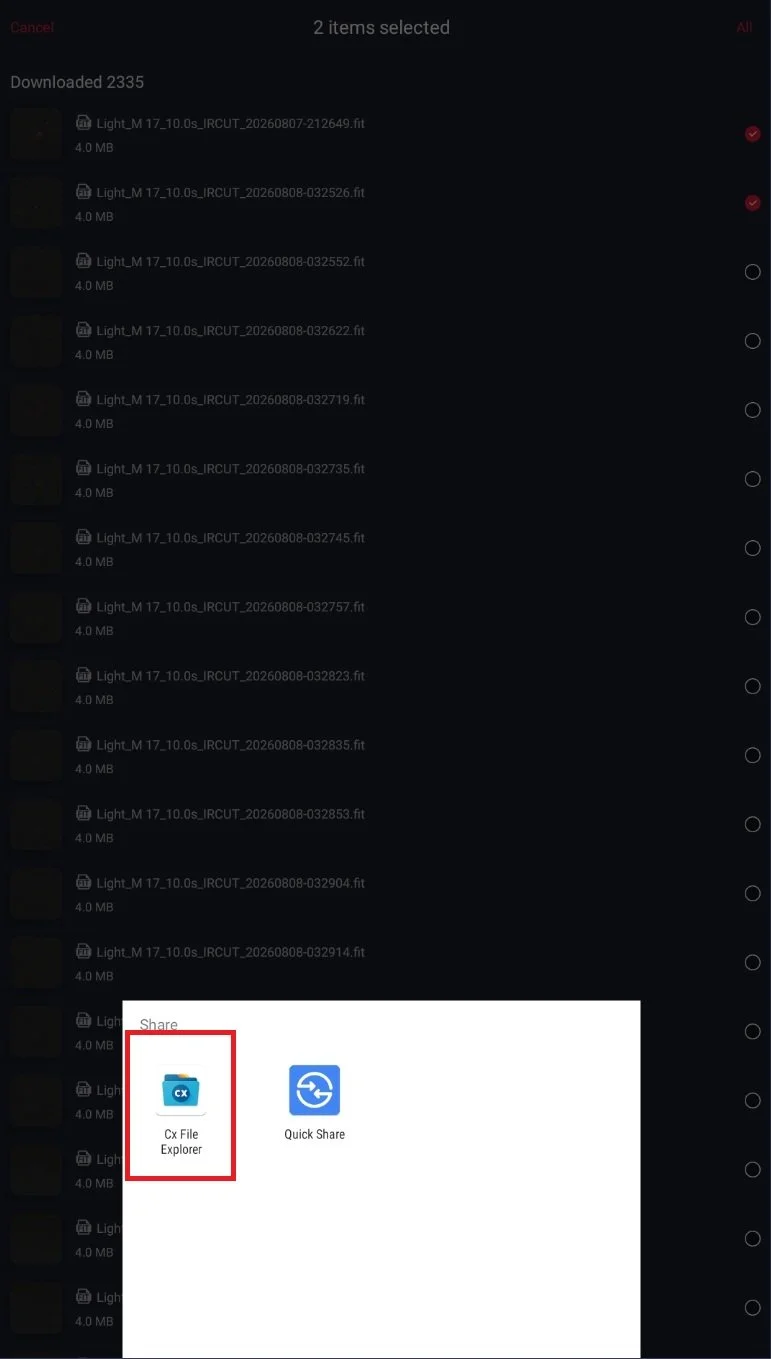
When the .zip file is ready you will be prompted to save the it. You can save it to your local device storage or network attached storage. I use CX File Explorer to transfer the data to network storage. Once transferred you may go back into your album and delete the data from the telescope.
Make it stand out
Whatever it is, the way you tell your story online can make all the difference.